A Complete Guide to HTML Tags and Elements
Aspiring Full Stack MERN Developer & DSA Enthusiast | Passionate about coding, problem-solving, and scalable web applications | Turning ideas into reality | JavaScript, React, Node.js — learning by building real-world projects 🚀
When you open a webpage, what you actually see is the result of many small building blocks working together behind the scenes. HTML is what gives those blocks their shape and position. If CSS is the paint and JavaScript is the brain, then HTML is the skeleton of a webpage—the structure that holds everything together.
What HTML Is and Why We Use It
HTML stands for HyperText Markup Language. It is not a programming language; instead, it’s a markup language used to describe the structure of content on the web. HTML tells the browser what something is—a heading, a paragraph, an image, or a button—so the browser knows how to display it.
Without HTML, a webpage would just be plain text with no organization. HTML helps us break content into meaningful parts so both browsers and humans can understand it.
What an HTML Tag Is
An HTML tag is like a label. It tells the browser how a piece of content should be treated.
You can think of a tag as a box label on a package. The label doesn’t contain the item itself—it only describes what’s inside.
example-
<br>
Tags are written using angle brackets < >, which makes them easy to spot.
Opening Tag, Closing Tag, and Content
Most HTML tags come in pairs.
The opening tag marks where the content starts
The closing tag marks where it ends
The content sits in between
Here’s a simple example:
<p>This is a paragraph.</p>
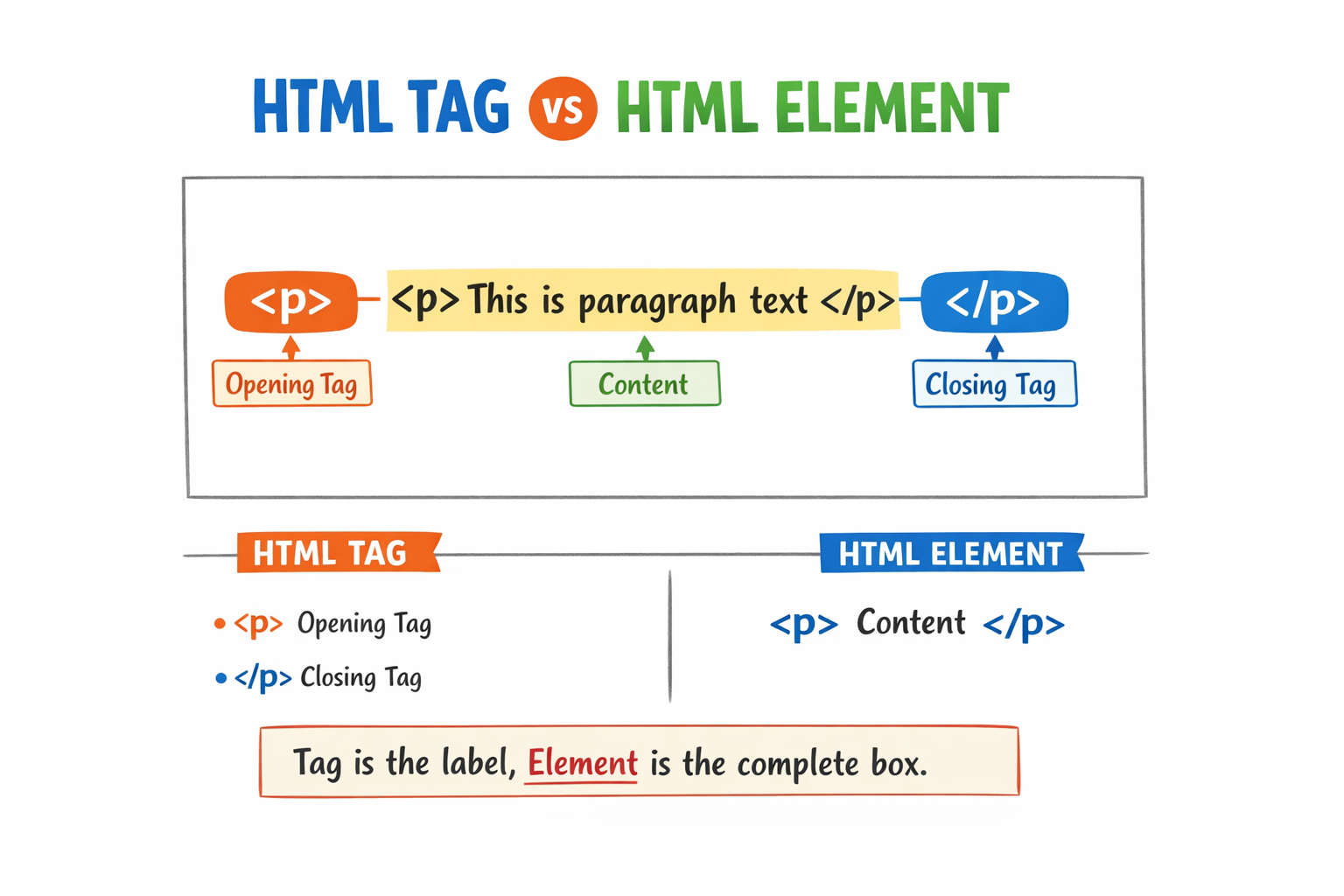
<p> is the opening tag, </p> is the closing tag, and the sentence in between is the content.
The slash / in the closing tag is what tells the browser the element is finished.
What an HTML Element Means
An HTML element is the complete structure—the opening tag, the content, and the closing tag together.
Think of it like a gift box:
The tag is the wrapping
The content is the gift
The element is the whole package
<h1>Hello World</h1>
Here, the <h1> tag alone is just a tag.
The full line—including the text—is the HTML element.
HTML tag vs HTML element :
Self-Closing (Void) Elements
Some HTML elements don’t wrap content at all. These are called self-closing or void elements.
They exist to insert something into the page rather than contain text.
Examples include:
<img src="image.jpg">
<br>
<hr>
An image doesn’t have text inside it, so it doesn’t need a closing tag. The same goes for line breaks and horizontal lines.
Block-Level vs Inline Elements
Block-Level Element Example
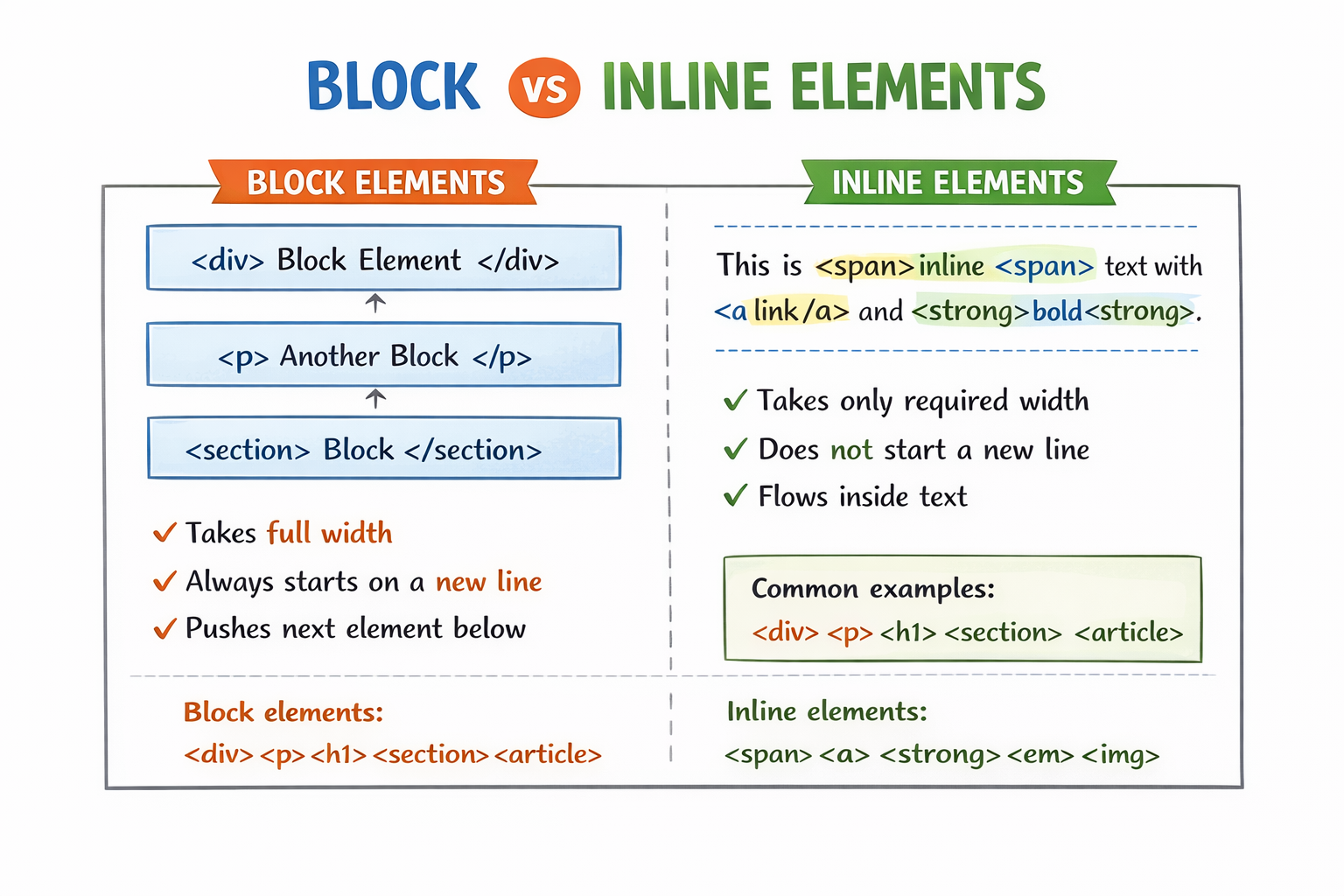
A block-level element always starts on a new line and takes up the full width of its container, even if the content is small.
<p>This is the first paragraph.</p>
<p>This is the second paragraph.</p>
What happens on the page?
Each paragraph appears on its own line, stacked vertically. Even if the text is short, the paragraph still occupies the full width.
Common block-level elements:
<div><p><h1>to<h6><section>
Inline Element Example
An inline element does not start on a new line. It only takes as much width as its content and flows inside text.
<p>
  This is a <span>highlighted</span> word in a sentence.
</p>
What happens on the page?
The word inside <span> stays on the same line as the rest of the sentence.
Common inline elements:
<span><a><strong><em>
Commonly Used HTML Tags — With Simple Examples
Below are the most commonly used HTML tags, each explained with a short, clear example so you can immediately see what they do.
Heading Tags (<h1> to <h6>)
Heading tags are used for titles and subtitles. <h1> is the most important, and <h6> is the least.
<h1>Main Page Heading</h1>
<h2>Section Heading</h2>
<h3>Subsection Heading</h3>
Browsers automatically make headings bold and larger based on their level.
Paragraph Tag (<p>)
The <p> tag is used for normal text content.
<p>This is a paragraph of text on a webpage.</p>
Each paragraph starts on a new line and has spacing around it.
Division Tag (<div>)
<div> is a block-level container used to group elements together.
<div>
  <h2>About Us</h2>
  <p>We build simple web applications.</p>
</div>
It doesn’t add visual styling by itself, but it’s very useful for layout and structure.
Span Tag (<span>)
<span> is an inline container, usually used to style or target part of text.
<p>This word is <span>important</span> in this sentence.</p>
Unlike <div>, <span> stays in the same line.
Anchor Tag (<a>)
The <a> tag is used to create links.
<a href="https://example.com">Visit Example</a>
Clicking the text takes the user to another page or website.
Image Tag (<img>)
The <img> tag displays images on a webpage. It is a self-closing (void) element.
<img src="photo.jpg" alt="A sample photo">
srctells the browser where the image isaltprovides text if the image cannot load (and helps accessibility
Conclusion
HTML tags and elements are the foundation of every webpage. By understanding how commonly used tags like headings, paragraphs, divs, spans, links, and images work, you gain the ability to structure content clearly and meaningfully. Start simple, practice by writing small examples, and don’t forget to inspect real webpages in your browser—HTML becomes intuitive the more you see it in action.


